Material Setup
Vertex Studio operates on the mesh data, this way, it doesn’t impose the usage of any shader. The mesh can have any shader and material. Of course, if you want to use the vertex color information in any way, your shader must use that information somehow (like showing the colors themselves or using the colors for something else, like blending textures).
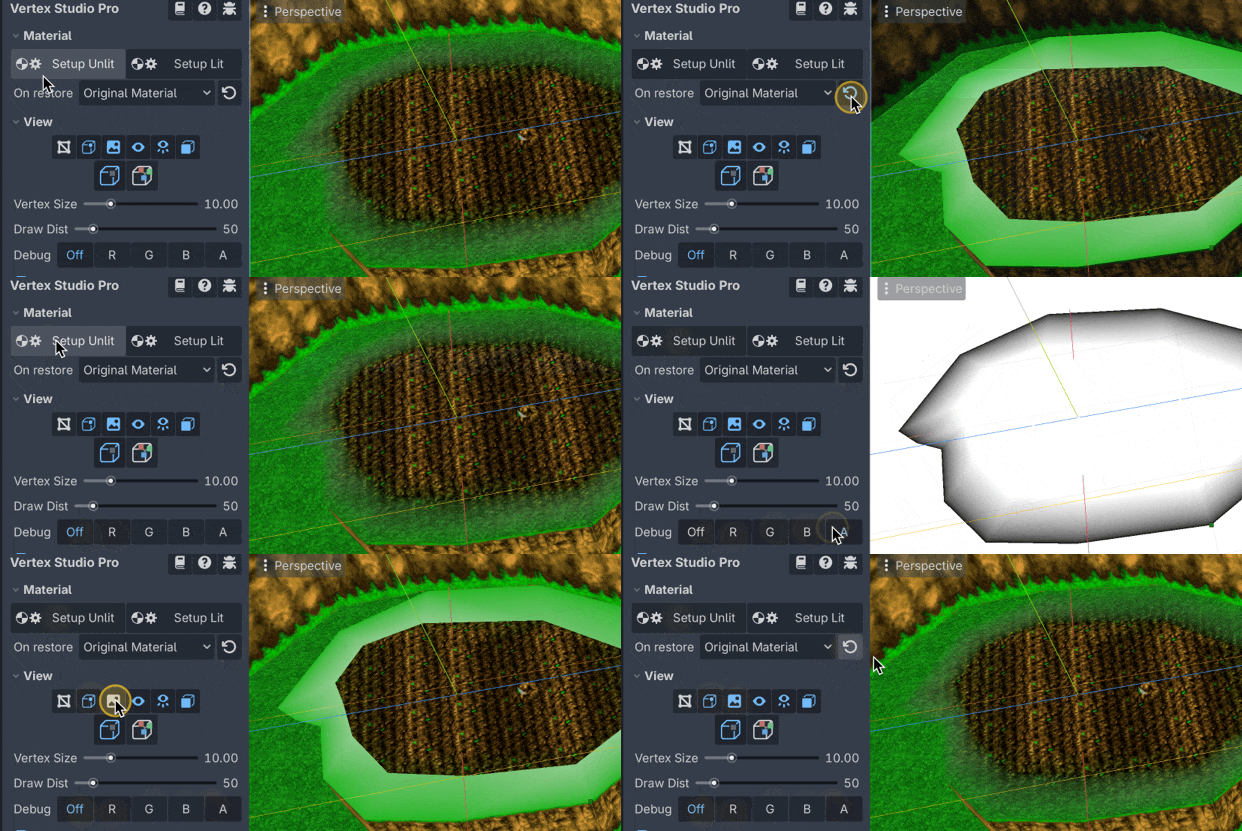
But in order to make it easy to use Vertex Studio, Vertex Studio provides a two default materials, called Setup Materials. These materials use the shaders that come in the shaders folder of the addon (you don’t have to worry about the shaders, setup is automatic, see below).
See the related FAQ: My model has a custom shader and custom material, can I use Vertex Studio to paint it?.
Warning
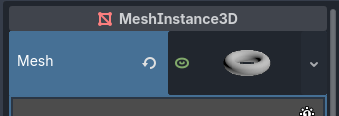
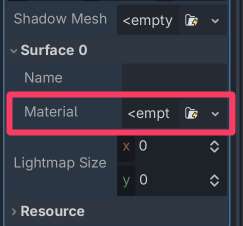
Make sure your mesh has at least one material assigned before using Vertex Studio, otherwise not even Vertex Studio’s setup materials will be applied. If for example you use one of Godot’s procedural meshes (like the Plane, Cube, Torus, etc.), you need to manually assign a material to the mesh before being able to paint the vertex colors with Vertex Studio.
Setup Material features
Automatically grabs the textures from the original material of the mesh.
It also uses the same sampling (texture filtering such Linear, Nearest, etc.) as the original material.
It respects the original material’s triplanar mapping, with the same
UV1 Scale,Offset,Triplanar SharpnessandWorld Triplanar, if present. The albedo and the normal map also follow it.It keeps the original material UV scale (
UV1 ScaleandOffset).
Displays vertex colors.
Contains code that allows the usage of Vertex Studio’s debug views and view options.
Two variations: Unlit (unshaded and no shadows, uses the shader
shaders/vertex_studio_unlit.gdshader) and Lit (uses the shadershaders/vertex_studio_lit.gdshader).By using the Lit material you can correctly visualize smooth and hard surfaces.
Setup Material usage
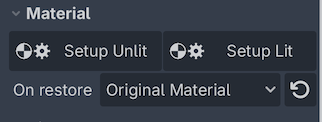
Click the Setup Unlit and Setup Lit buttons to switch between the two materials. You can click them anytime, as many times as needed during the usage of Vertex Studio.
Original Material
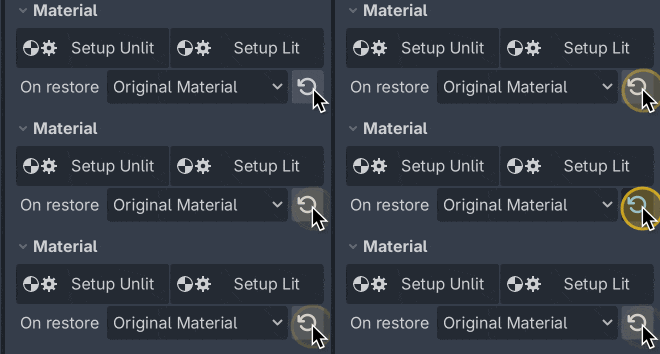
If you want to view the mesh’s original material and shader, you can click the Restore Original Material button. You can alternate between the original material and the setup materials anytime, simply by clicking the buttons.
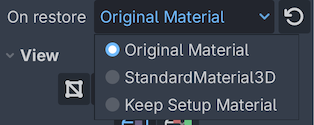
On restore options
Original Material: restores the mesh’s original material and shader (i.e. your custom material and shader).StandardMaterial3D: applies Godot’s StandardMaterial3D to the mesh withVertex Colors: Use as Albedoenabled.Keep Setup Material: persist the setup material into the mesh, even after closing Vertex Studio.
Automatically restoring the original material
Upon closing Vertex Studio (or simply running the project), the material specified in On restore is restored automatically, so you don’t have to worry about manually restoring the original material or switching Vertex Studio’s setup materials on and off.