Mesh Tools
Tools that work on the mesh as a whole, instead of on colors or selections, in the Mesh Tools section, at the bottom of the panel.
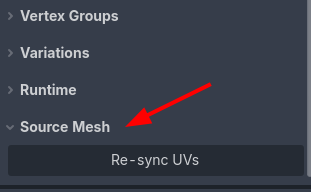
Re-sync UVs
Note
This feature requires Vertex Studio Pro ⭐.
When you paint a mesh, Vertex Studio saves the result inline in the scene file, which means the MeshInstance3D stops using the mesh from the model file and uses its own copy instead (see the FAQ). From that moment on, if you go back to Blender and tweak the UVs, the re-imported model no longer reaches the painted node.
Re-sync UVs reads the source model again and copies the UVs (UV, UV2 and the tangents) into your painted mesh, keeping everything Vertex Studio edited: vertex colors, normals and positions.
Edit the UVs in your 3D application and save the model, Godot re-imports it as usual.
Select the
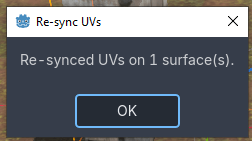
MeshInstance3Dthat you painted in Vertex Studio, expandMesh Toolsand clickRe-sync UVs.A summary tells you how many surfaces were re-synced and how many were skipped (if any).
Vertex Studio finds the source model on its own, either from the inherited scene the mesh came from or from a model ancestor in the scene. If it can’t figure it out, it asks you to pick the model file (glb, gltf, blend, etc).
Important
Only the UVs and the tangents come back from the source model. Geometry changes (new vertices, moved vertices, a different triangle count) are not brought back, and that is not something that can be recovered, at least in the current implementation, see the FAQ.
When the vertex counts don’t match
The exact re-sync matches vertices by index, which only works while your mesh and the source model still have the same number of surfaces and the same vertex count per surface. That is the normal case after a UV-only edit.
The counts differ when the painted mesh has more vertices than the source, which usually means you created hard edges with the Paint Normals brush (a hard edge splits a vertex into one per face, see Merge and Split Shared Vertices).
In that case Vertex Studio offers a best-guess re-sync:
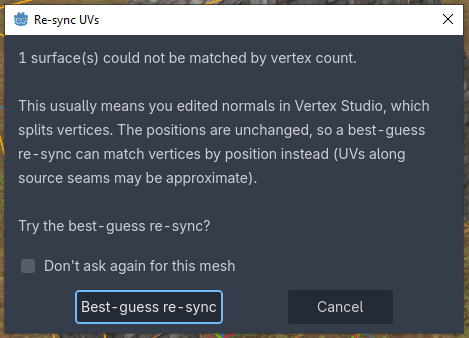
Since editing normals never moves a vertex, the best guess matches vertices by position instead of by index: each vertex takes the UV of the source vertex sitting at the same place, and split corners all inherit that one UV. Where the source has a UV seam (several UVs at the same position) it picks the one closest to the vertex’s current UV, so a moderate UV move still lands on the right side of the seam.
It is a guess, not an exact mapping, so check the result. If it went wrong, undo with Ctrl+Z.
Don't ask again for this mesh: check it and the best guess runs directly on the next re-sync of that mesh, with no dialog. It’s remembered inres://.vertex_studio/prefs.cfgand keyed by the scene plus the mesh name, so renaming the node or moving the scene makes it ask once more.Surfaces with no counterpart in the source model are skipped and reported in the summary.
Export as glTF
Note
This feature requires Vertex Studio Pro ⭐.
Export as glTF writes the painted mesh through Godot’s own glTF exporter, so you can take what you painted in Godot into Blender or anywhere else.
Select the
MeshInstance3Dyou painted and expandMesh Tools.Click
Export as glTFand choose where to save it (it can be inside or outside the project).A summary tells you how many meshes, vertices and triangles were written.
When exporting to glTF:
Alpha is preserved: glTF has a real vertex color channel (
COLOR_0) with alpha in it, so what you paint into the A channel is preserved. This is the format to use when alpha is part of the work.Materials are preserved: the mesh’s original material is preserved and exported.
The colors are stored with 8 bits per channel, i.e. a value like
0.25is saved as0.2471.
Export as OBJ
Note
This feature requires Vertex Studio Pro ⭐.
Export as OBJ writes the same painted mesh to Wavefront .obj. The steps are the same as above.
When exporting to OBJ:
Vertex colors: as the
v x y z r g b: OBJ has no color channel, the color is written as extra numbers on the vertex line. Blender 4+ and MeshLab read it, and an application that doesn’t know the extension still reads the position and ignores the rest.Alpha channel: as a 7th number (
v x y z r g b a), if you tickInclude alphaunder the button. It’s off by default, because most applications don’t read it: Godot’s own OBJ importer takes ther g band discards the alpha, and also Blender (tested on 5.1: alpha is 1.0). UseExport as glTFwhen needing to use the alpha channel.UVs and normals.
Every target of the panel: each one as its own object in the same file. With
Include Childrenon, the children keep their placement from the scene.
Re-export
Once a mesh has been exported, a Re-export OBJ or Re-export glTF button appears. It writes the same file again, in the same format and with the same settings.
The path, the format and the alpha choice are remembered per mesh in
res://.vertex_studio/prefs.cfg(remembered when Godot is closed). Selecting the mesh again setsInclude alphaback to what that export used.Actions bindable with shortcuts in .