View and Debug Options
View Options
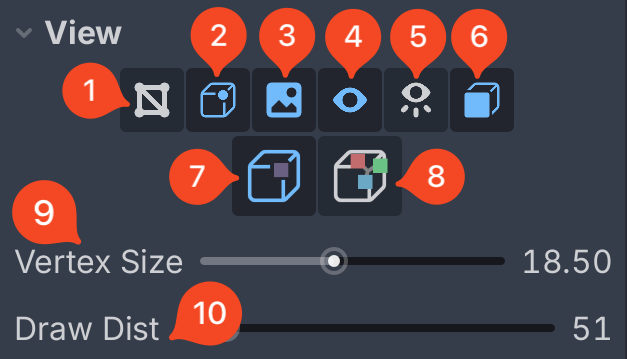
Toggle mesh’s wireframe (it overlays on top of the mesh)
Toggle vertex colors
Toggle texture(s) (if the mesh has any textures)
Note
Options 2 and 3 only work if you have Vertex Studio’s “Setup Material” active. See Material Setup.
Toggle display vertex overlay (display vertices as squares over the mesh, each square is colored with its vertex color)
Keep off if you are suffering from performance issues.
Drawing the cloud can cost frames even with the GDExtension edition, depending on the machine. Vertex Studio switches this off by itself past the Very Dense Mesh Vertex Count project setting, see Project Settings.
Note
Always Show Vertices is only practical on light meshes. Past a few tens of thousands of vertices it draws so many squares that they merge into an unreadable clump, so Vertex Studio switches it off automatically above the Dense Mesh Vertex Count project setting, and subsamples the cloud on dense meshes. See A note on Always Show Vertices.
Always Show Vertices:
On: display all vertices, regardless of whether they are under the brush/cursor or selected.
Off: display only vertices under the brush/cursor or selected vertices.
Keep off if you are suffering from performance issues.
Show front vertices only: display only the vertices that are facing the camera. When off, works like a kind of “x-ray” view, showing all vertices, allowing to select and paint front and backface vertices.
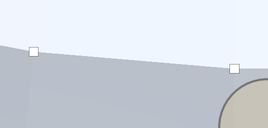
Merge Shared Vertices: paint every vertex sharing a position together (smooth/soft-normal corners and smooth, soft-normal look).
Displayed as a “single square” per vertex.
Default vertex painting mode.
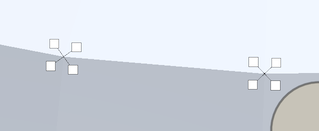
Split Shared Vertices: fan coincident hard-edge vertices apart so each face’s corner can hold its own color.
Displayed as “multiple squares” fanning out from the “physical vertex” per vertex.
Requires hard edges / flat shading. You can create hard edges with the Paint Normals brush tool.
Vertex Size: how big the vertex overlay squares are.
Draw Distance: how far the vertex overlay squares are visible.
Debug and Performance Options
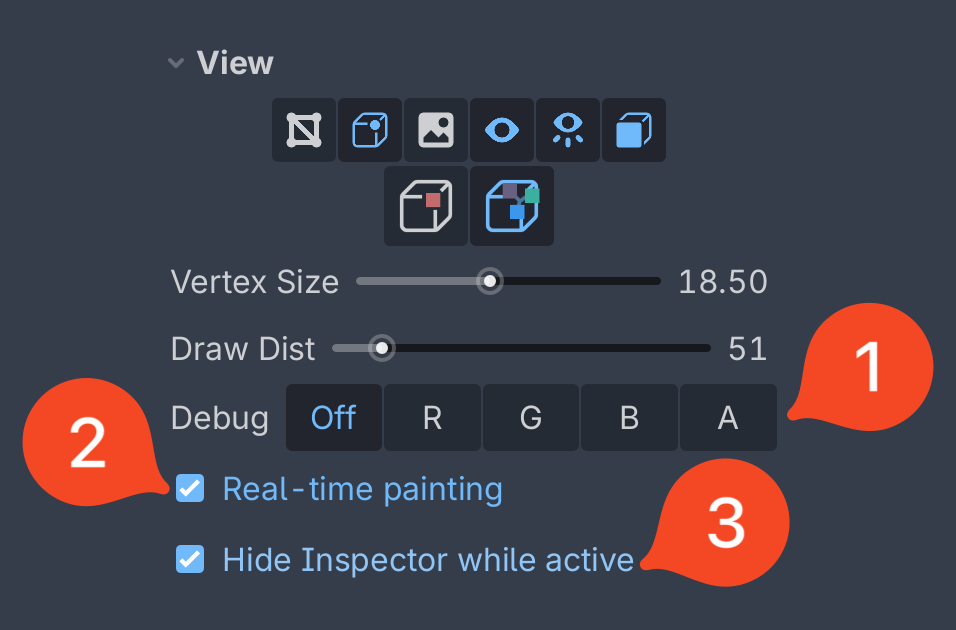
Debug RGBA channels:
Off: display all channels of the vertex colors.
R, G, B, A: toggle the display of only the red, green, blue, or alpha channels of the vertex colors.
Note
Debugging views only work if you have Vertex Studio’s “Setup Material” active. See Material Setup.
Tip
For more information about the RGBA channels, see R/G/B/A Channels. And for a real usage example, see Multi-texture blending with vertex colors.
Real-time painting:
When active, the vertex colors are updated in real-time as you paint (just like any painting application like Krita, Photoshop, etc.).
When inactive, the vertex colors are updated only when you release the mouse.
Keep inactive if you are suffering from performance issues.
Hide Inspector while active: While a tool is active, switch the editor’s Node to Signals or Groups so the Inspector doesn’t repaint on every stroke (fixes slow or “jumping” painting).
Since Vertex Studio works by modifying the
MeshInstance3Dmesh data, Godot’s Inspector keeps refreshing and repainting on every stroke, causing slow or “jumping” painting, that’s why this option was added, which automatically make Godot switch to Signals or Groups while a tool is active.