Project Settings
Vertex Studio adds its own section to Project > Project Settings > General, with two sub-sections:
Settings: behaviour and performance options, explained below.
Shortcuts: the keybinding for every tool and action, see Shortcuts.
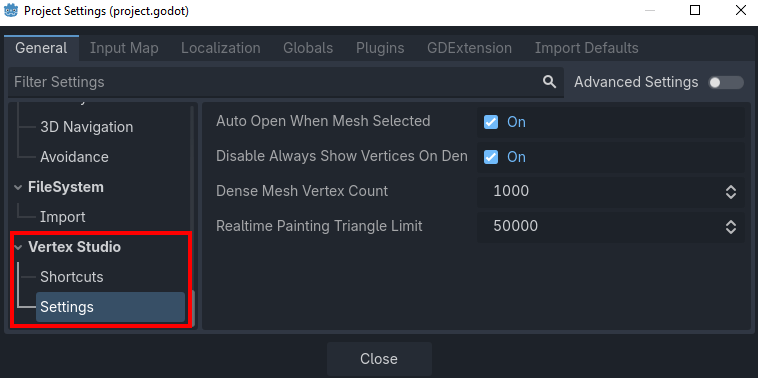
Everything here is stored in the project’s project.godot, so the settings belong to the project (and to version control). Each entry has Godot’s usual revert arrow to bring the default back.
Note
These are project-wide options. The per-mesh and per-session options (view modes, brush, colors, palettes, and so on) live in Vertex Studio’s own panel, see View and Debug Options and Brushes and Painting Tools.
Settings
Auto Open When Mesh Selected
Default: on.
With this on, once you open Vertex Studio it stays open while you select other MeshInstance3D nodes, which is what you want when you are painting a whole scene.
With it off, the panel only reopens for the meshes you were painting: Vertex Studio remembers, per mesh, whether you left the panel open (the toolbar toggle is what marks it), and selecting a mesh you never opened it on keeps the panel closed. Handy in scenes full of MeshInstance3D nodes where only a couple of them are vertex painted.
That per-mesh memory is kept in res://.vertex_studio/prefs.cfg, so it survives closing Godot.
Disable Always Show Vertices On Dense Meshes
Default: on.
Drawing one square per vertex is the most expensive part of the overlay, and Always Show Vertices pays that cost the whole time, even with no tool active. So when the selected mesh has at least Dense Mesh Vertex Count vertices, Vertex Studio switches Always Show Vertices off for you.
The setting is an automatic override: your own value comes back as soon as you select a lighter mesh, and if you turned Always Show Vertices back on in the meantime, your click wins. See View and Debug Options for both options.
Note
Show Vertices has its own higher threshold, see Disable Show Vertices On Very Dense Meshes below: it only draws while you are actually using a tool.
Dense Mesh Vertex Count
Default: 1000 vertices (minimum 100).
The vertex count at which a mesh counts as “dense” for the option above.
Disable Show Vertices On Very Dense Meshes
Default: on.
Past Very Dense Mesh Vertex Count vertices Vertex Studio switches Show Vertices off.
Very Dense Mesh Vertex Count
Default: 250,000 vertices in the GDExtension edition, 20,000 in the GDScript one.
The vertex count at which a mesh counts as “very dense” for the option above. Lower it if the vertex cloud is costing you frames on your machine, increase it if your machine handles more than the default.
Realtime Painting Triangle Limit
Default: 50000 triangles.
Every brush dab rebuilds the MeshInstance3D data, which is what makes painting a heavy mesh stutter, and Hide Inspector while active tries to help with that, but that helps up to a point.
Past this setting triangle count Vertex Studio ignores the panel’s Real-time painting option and waits for the mouse release to rebuild.
See the performance options in Debug and Performance Options.
Shortcuts
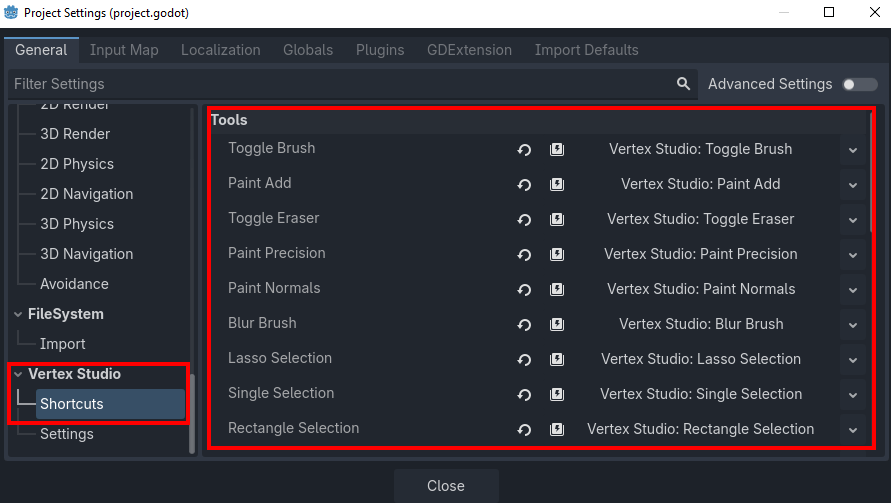
Every tool and action of Vertex Studio is bindable here, grouped by category (Tools, Actions, View, Material, Mesh Tools and Brush). Most of them ship unbound on purpose, to stay out of the way of Godot’s own 3D viewport shortcuts.
The default keys, the full list of bindable actions and how to rebind them are all in Shortcuts.
Async Fill Normals Vertex Count
Default: 100000.
Fill All Hard and Fill All Smooth have to touch every vertex of the mesh, which can freeze the editor on dense meshes. At or above this vertex count, Vertex Studio runs the fill in the background (off the main thread).
Show Mesh Statistics In Panel
Default: off.
Adds a Targets section at the top of the panel with the number of meshes, vertices and triangles of the current selection, plus how many vertices are selected, and the Include Children checkbox.
Where Vertex Studio stores things
File |
What it holds |
|---|---|
|
The Project Settings above, plus every shortcut binding. Commit it. |
|
Per-mesh data: vertex groups, variation history and the original material overrides. This is project data, commit it. |
|
Panel preferences: brush and color settings, palettes, which panel sections are expanded, which meshes had the panel open, and the “don’t ask again” answers of the Re-sync UVs dialog. Per user, so you can leave it out of version control. |